Domain Verification in Zoho Mail
Zoho Mail is a business email platform where you can generate domain-based custom email addresses, like yourname@yourdomain.com. And when you add your domain to create your custom email address, you need to verify that you own the domain before proceeding further. Zoho Mail can verify the ownership of your domain in different ways—One-click Verification, TXT, CNAME, or HTML. And to verify your domain using one of these methods, you will need access and permission to modify your Domain's DNS page.
In case you do not have the required privileges to edit the DNS, you need to get the assistance of someone who has access to those details. This is essential to complete the email hosting setup of your domain with Zoho Mail.
Why is domain verification required?
Domain verification is a mandatory step when setting up your domain in Zoho Mail. It ensures the following:
- Confirms domain ownership: Verifies that the person or organization setting up email services owns or has authorized access to the domain being used.
- Prevents unauthorized access: Ensures that unauthorized users cannot configure email services for a domain they do not own, reducing the risk of misuse or identity spoofing.
- Protects against phishing: Prevents malicious actors from using your domain to carry out phishing attacks or impersonate your organization.
- Confirms domain is active: Ensures that the domain is active and properly configured for reliable email delivery.
- Restricts management to authorized administrators: Ensures that only verified administrators can manage email accounts and settings under the domain, protecting your brand identity.
- Enables email authentication standards: A verified domain allows the enforcement of email authentication protocols such as SPF, DKIM, and DMARC, ensuring that emails are delivered reliably without being flagged as spam.
Zoho Mail enforces domain verification to ensure that:
- The domain provided is valid and has not expired.
- The domain is submitted by its legitimate owner or a user with permission to access its DNS settings.
- The domain is not a spoofed address, preventing misuse or potential service disruption.
Domain Connect Verification
Zoho Mail supports Domain Connect or One-click verification for selected domain providers such as:
With the Domain Connect verification method, you can verify your domain by simply logging in to your domain provider's page and authenticating Zoho Mail to access your domain's DNS page. This way, we will automatically verify your account without the help of manual verification techniques.
TXT Method
Verifying your domain using the TXT method involves three major steps:
- Copying the unique TXT value from Zoho Mail Admin Console.
- Adding the value as a TXT record to your domain's DNS Manager.
- Verifying the added TXT record from the Zoho Mail Admin Console.
Copy your unique TXT code
- Log in to your Zoho Mail Admin Console and navigate to the Domains section via the left pane.
- Select the domain you want to verify from the list of added domains.
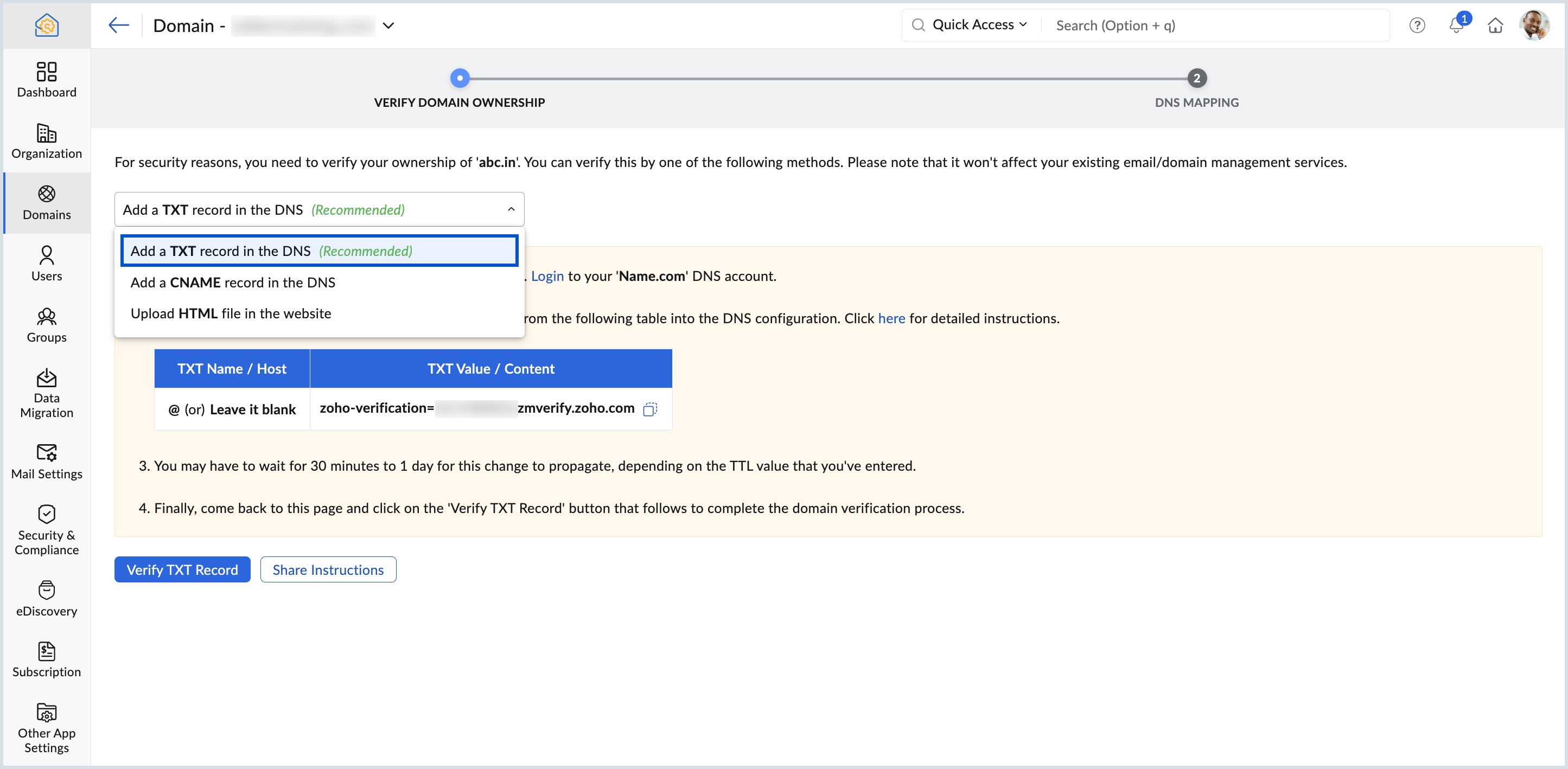
- At the Verify Domain Ownership section of your domain, choose the Add a TXT record in the DNS option from the drop-down list.
- You can either write down or copy the text hash generated to easily add it to your domain's DNS page.
- After copying the values, proceed to your domain provider's page and log in to your account.
Note:
- The hash code generated is unique and specific to each domain you configured. The ZB code of one domain will not work when added to a different domain's DNS.
Adding TXT record to your DNS: Generic instructions
You can configure domains from any provider and successfully host your emails in Zoho Mail. The only prerequisite is that you should have access and permission to edit the DNS page of your domain.
- Log in to the domain provider's account (For example, GoDaddy, namecheap, among others) where your domain's name server is pointed.
- Access your domain and navigate to it's DNS page (DNS Manager or DNS Control Panel or Advanced DNS editor).
- Locate the option to add TXT records (generally found under DNS Records).
- In the Name/ Host/ Alias/ TXT, enter @ or leave it blank.
In the Value/ Points To/ Destination field, add the Zoho Mail verification hash—zoho-verification=zb********.zmverify.zoho.***.
TXT record format Name/ Host/ Alias/ TXT
Value/ Points To/ Destination/TXT
@ or leave it blank
zoho-verification=zb2****183.zmverify.zoho.***
- If the TTL is editable, set it to the minimum possible value recommended by your Registrar.
- Save the TXT Record added and give it an hour to two to propagate.
Note:
- You can also request your domain provider to create a TXT with the hash code generated in Zoho Mail Admin Console if you find any difficulties.
- It is recommended to delete the TXT records added in your DNS provider's page once the verification is successfully completed in the Zoho Mail Admin Console.
Verify your TXT record
To verify the added TXT record, follow these instructions:
- Log in to your Zoho Mail Admin Console and navigate to the Domains section via the left pane.
- Click the domain you want to verify from the list of added domains.
- At the Verify Domain Ownership section of your domain, choose the Add a TXT record in the DNS option from the drop-down list.
- Click the Verify TXT record button.
Your domain will get successfully verified if the values you added were right. In case of errors during the process, you can troubleshoot for domain verification failure.
Note:
Toolkit by Zoho Mail is a free lookup tool by Zoho for all your DNS-related lookup queries. You can check if the CNAME/ TXT values you entered have propagated, look up existing DNS values, and perform many other admin-related activities.
For detailed instructions on using the Toolkit, click here.
CNAME verification
Verifying your domain using the CNAME method involves three major steps:
- Copying the unique CNAME value from Zoho Mail Admin Console.
- Adding the value as a CNAME record to your domain's DNS Manager.
- Verifying the added CNAME record from the Zoho Mail Admin Console.
Copy your unique CNAME code
- Log in to your Zoho Mail Admin Console and navigate to the Domains section via the left pane.
- Click the domain you want to verify from the list of added domains.
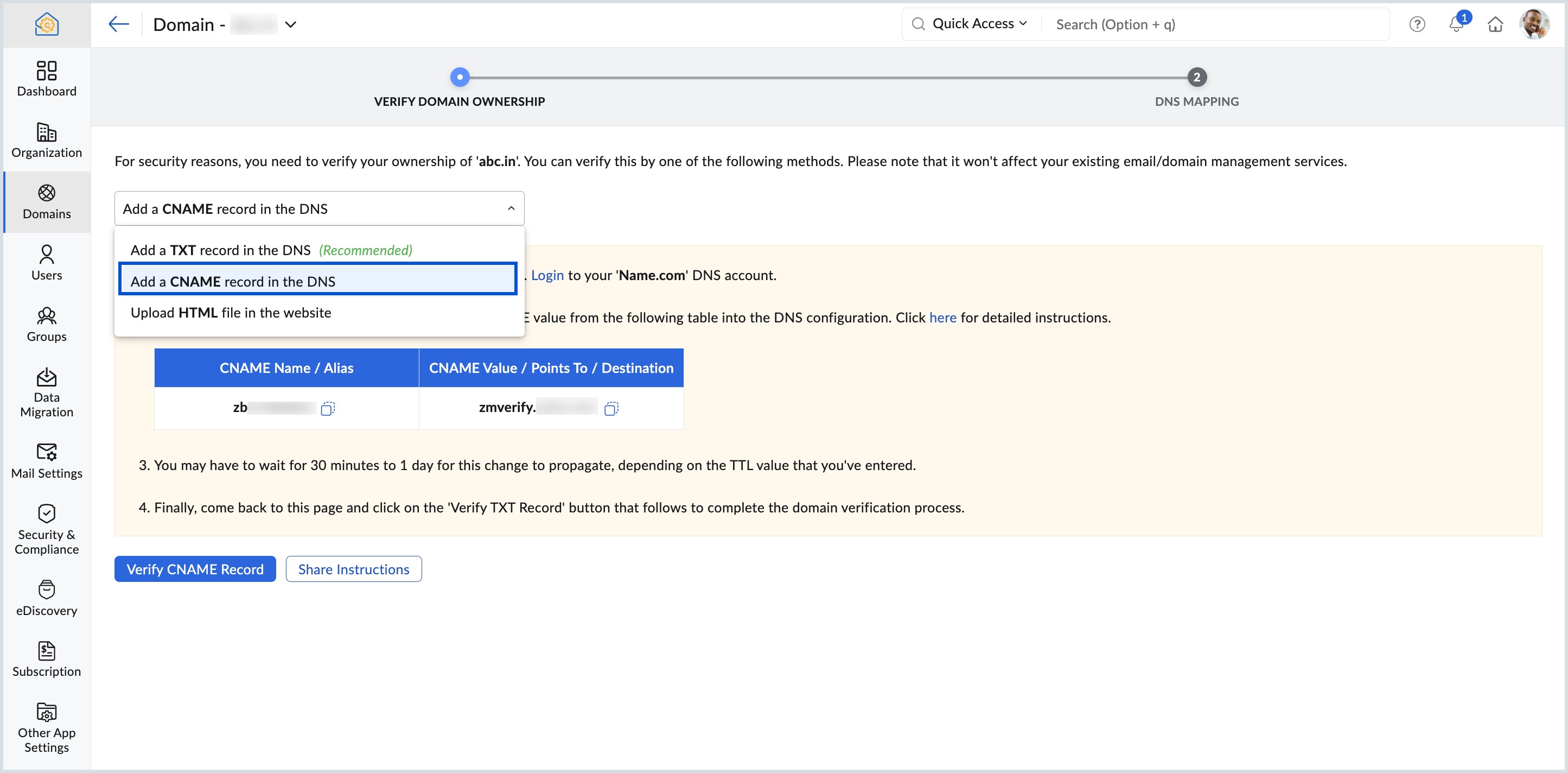
- At the Verify Domain Ownership section of your domain, choose the Add a CNAME record in the DNS option from the drop-down list.
- You can either write down or copy the values generated to easily add them to your domain's DNS page.
- After copying the values, proceed to your domain provider's page and log in to your account.
Note:
The ZB code generated is unique and specific to each domain you configured. The ZB code of one domain will not work when added to a different domain's DNS.
Adding CNAME record to your DNS: Generic instructions
You can configure domains from any provider and successfully host your emails in Zoho Mail. The only prerequisite is that you should have access and permission to edit the DNS page of your domain. Zoho Mail provides provider-specific instructions for most of the well-known domain providers. If you can't spot your provider in our list, find the generic instructions given below.
- Log in to the domain provider's account (For example, GoDaddy, namecheap, among others) where your domain's name server is pointed.
- Access your domain and navigate to it's DNS page (DNS Manager or DNS Control Panel or Advanced DNS editor).
- Locate the option to add CNAME records (generally found under DNS Records).
- In the Name/ Host/ Alias/ CNAME, add the code generated in your Zoho Mail Admin Console—zb********.
In the Value/ Points To/ Destination field, add zmverify.zoho.***.
CNAME record format Name/ Host/ Alias/ CNAME
Value/ Points To/ Destination/CNAME
zb********
zmverify.zoho.com
- If the TTL is editable, set it to the minimum possible value recommended by your Registrar.
- Save the CNAME Record added and give it an hour to two to propagate.
Note:
- You can also request your domain provider to create a CNAME with the code generated in Zoho Mail Admin Console if you find any difficulties.
- It is recommended to delete the CNAME records added in your DNS provider's page once the verification is successfully completed in the Zoho Mail Admin Console.
Verify your CNAME record
You can check if the CNAME value has propagated by using the Zoho Toolkit. You can perform a CNAME lookup in Toolkit by Zoho Mail and check the CNAME values. Once the values get updated which might take an hour or two depending on your domain provider, you can go to the Zoho Mail Admin Console and proceed with the verification.
To verify the added CNAME record, follow these steps:
- Log in to your Zoho Mail Admin Console and navigate to the Domains section via the left pane.
- Click the domain you want to verify from the list of added domains.
- At the Verify Domain Ownership section of your domain, choose the Add a CNAME record in the DNS option from the drop-down list.
- Click the Verify CNAME record button.
Your domain will get successfully verified if the values you added were right. In case of errors during the process, you can troubleshoot for domain verification failure.
HTML Method
Although we don't recommend it (because of its extensive steps), you can also verify your domain using the HTML method. Verifying your account using the HTML method involves four major steps:
- Downloading the unique HTML file from the Zoho Mail Admin Console.
- Accessing the root of your WebHost and creating a folder named zohoverify.
- Uploading the file you downloaded from the Zoho Mail Admin Console to the zohoverify folder.
- Verifying the added HTML file from the Zoho Mail Admin Console.
Adding HTML file to your WebHost: Generic instructions
- Log in to your Zoho Mail Admin Console and navigate to the Domains page from the left pane.
- Click the domain you want to verify from the list of added domains.
- At the Verify Domain Ownership section of your domain, choose the Add a HTML file in the website option from the drop-down list.
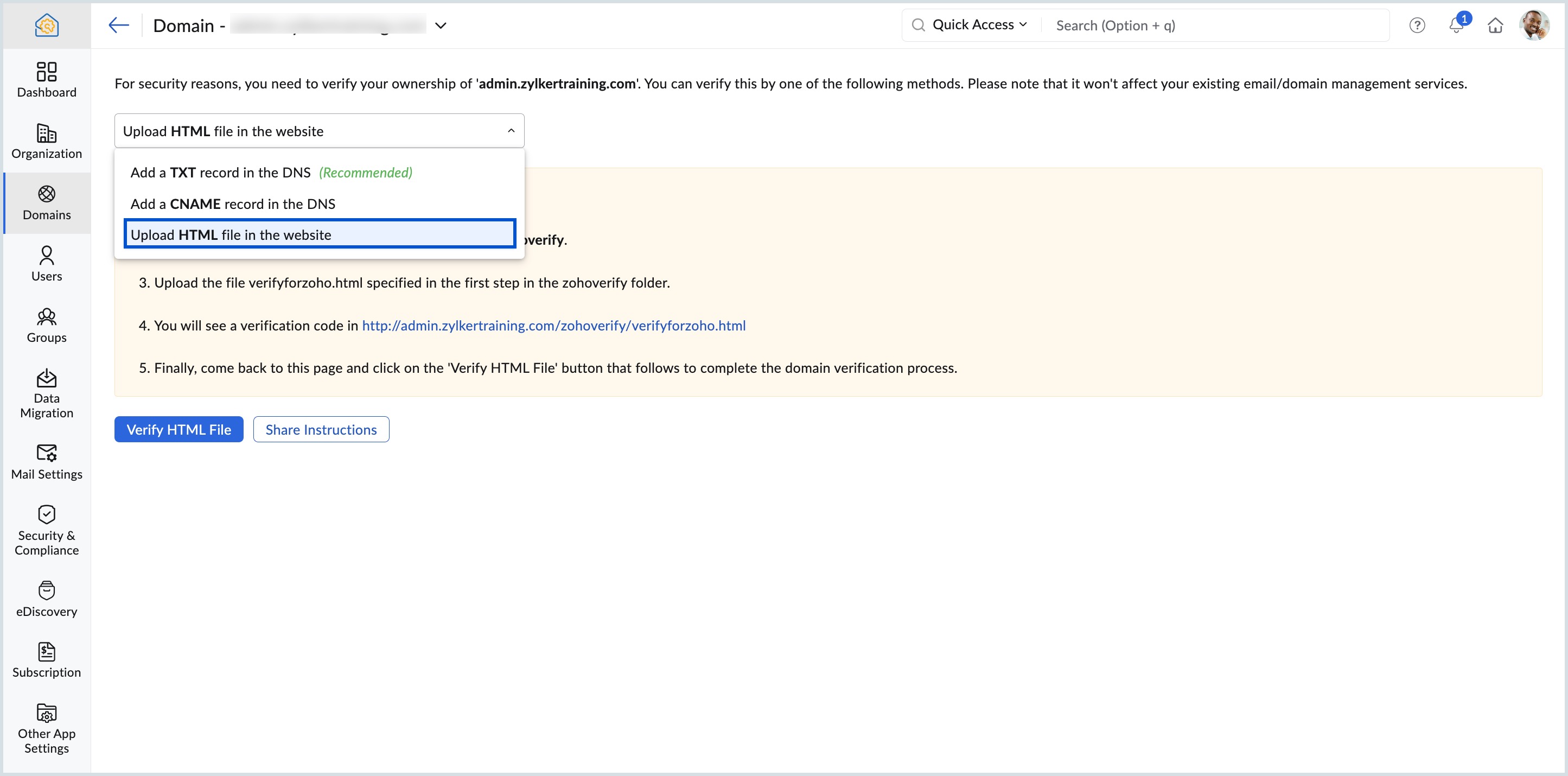
- Click the verifyforzoho.html to download the required HTML file.
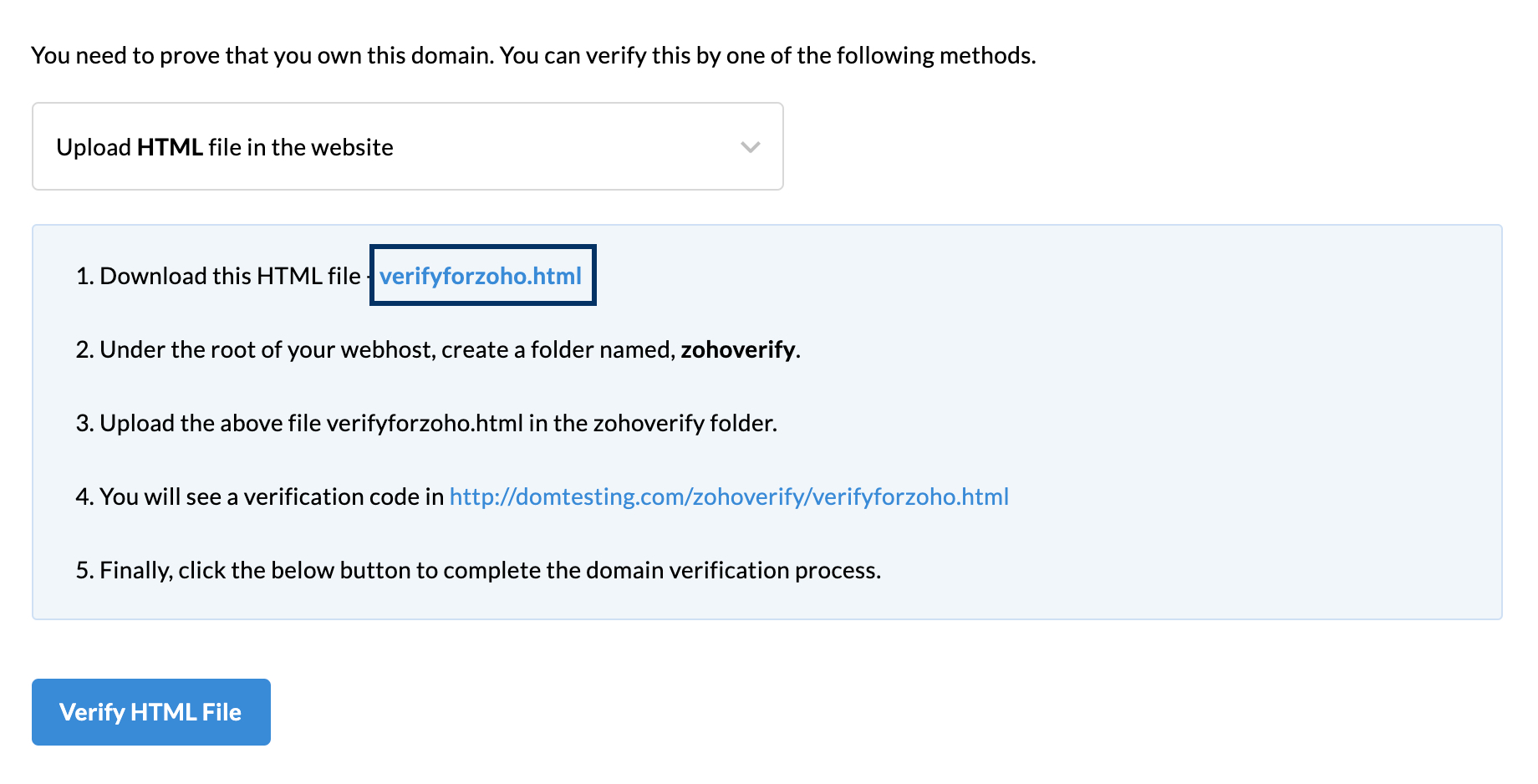
- After downloading the file, proceed to your domain provider's page and log in to your account.
- Access your root directory and create a folder named zohoverify.
- Inside the zohoverify folder, add the HTML file that you downloaded from Zoho Mail Admin Console— ./zohoverify/verifyforzoho.html should be the designated path.
- After successfully adding the HTML file to your WebHost as instructed, you should be able to view a 13 digits numeric code by accessing the link available in the Zoho Mail Admin Console. If not, you can also check the code by manually going to yourdomain.com/zohoverify/verifyforzoho.html (replace yourdomain.com with your actual domain name).
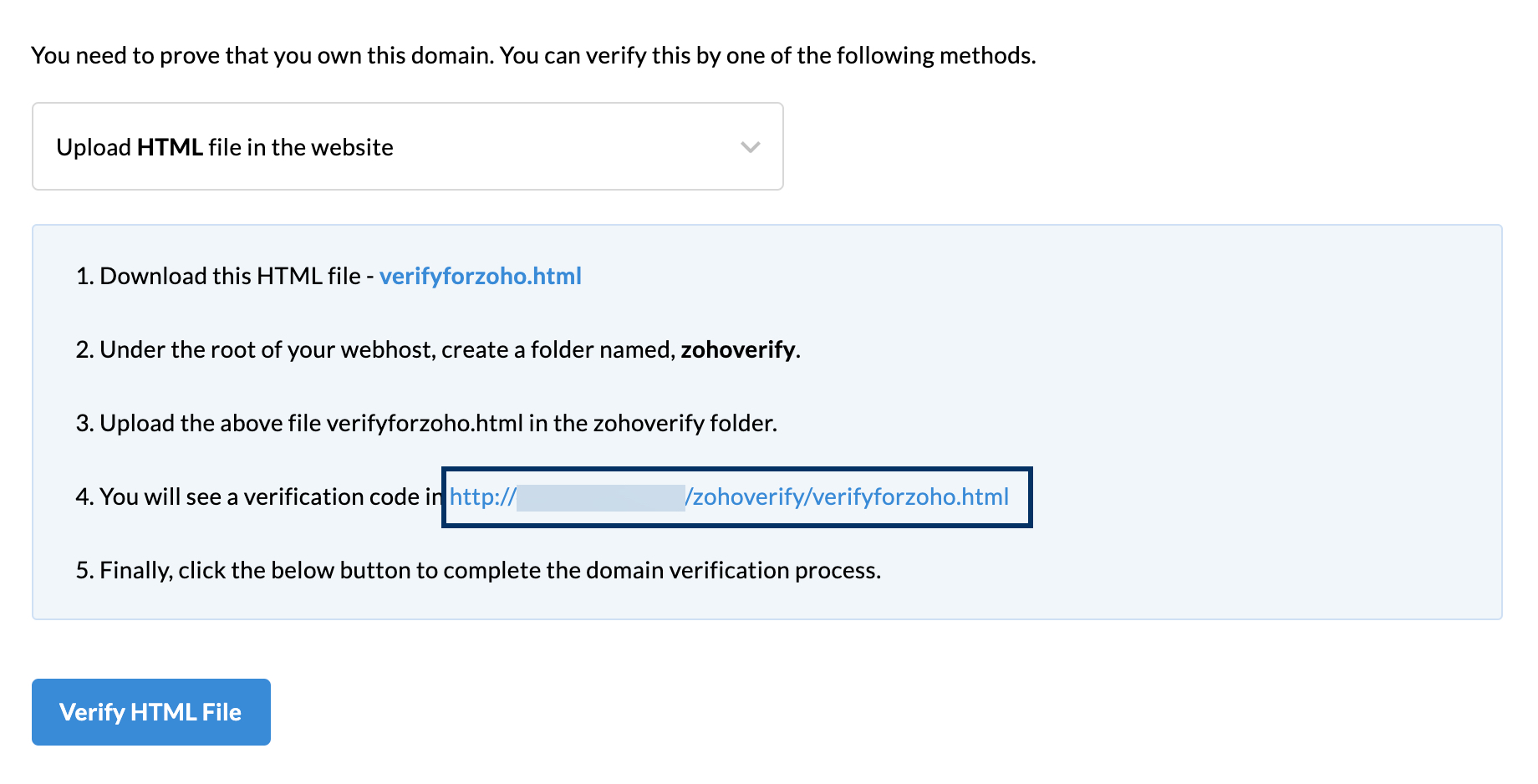
- If you see the code, click Verify HTML file.
After successfully verifying your domain, you can proceed to add MX records to configure your email delivery. Adding MX records is mandatory to get your emails rightly delivered to your inbox. Once you add the MX records, you can check the status of the propagation using the MX lookup tool.
If you face any issues during the domain verification process, refer to the troubleshoot verification help page.
Domain expiration
When you add a domain to Zoho Mail, it is important to ensure that your domain registration remains active. Every domain has a registration period, typically one year, and must be renewed before it expires to avoid any disruption to your email services. If your domain expires, Zoho Mail will be unable to verify its ownership, and your custom email addresses will stop functioning.
To avoid interruption to your Zoho Mail services, it is recommended that you keep track of your domain's expiration date and renew it on time. You can check your domain's expiration status through your domain registrar's account. Enabling auto-renewal through your registrar, wherever available, is a good practice to ensure uninterrupted email service for your organization.
The following things happen when a domain expires:
- Domain becomes inactive: All associated DNS records, including TXT, CNAME, and MX records, become unreachable. Any domain verification previously completed in the Zoho Mail Admin Console also becomes invalid.
- Custom email addresses stop functioning: All email addresses associated with the expired domain will become inactive, preventing users from sending or receiving emails.
- Mail configurations become non-operational: Email aliases, groups, routing rules, and filters associated with the domain will stop functioning. These configurations are retained in the Zoho Mail Admin Console and will be restored once the domain is renewed and re-verified.
- MX-record configuration: Once the domain is renewed after expiration, you will need to reconfigure your MX records in your domain registrar's website as part of the reverification process. This ensures that email delivery continues without any interruption following the renewal.
Note:
If your domain expires and is subsequently renewed, you may need to re-verify your domain ownership in the Zoho Mail Admin Console to restore your email services.
Related Pages
Buy Domain through Zoho | Add domain | Troubleshoot domain verification