


Formula Data Type
Formula data type in a custom field enables you to build a formula that performs calculations using predefined functions, fields, and operators. This formula will then be executed and the output will be displayed in the custom field. Let’s see how you can use this in Zoho Books with the help of few scenarios.
Scenario 1: Door to Door is an e-commerce company. Most of their customers have common first names. To identify their customers easily they create a custom field called Customer Identity. Customer Identity is a unique value obtained by combining the values in the Customer Name and Phone Number fields. Door to Door uses the formula data type in custom fields to combine the Customer Name and Phone Number fields, and stores the value in the Customer Identity field.
Scenario 2: Premier Courier is a courier and package distribution company operating in India. They calculate an item’s weight in kilograms. They have customers in Canada where weight is calculated in pounds. Premier Courier uses the formula data type in custom fields to convert the weight from kilogram to pound.
The formula data type consists of three elements:
- Function: A function performs a specific action based on the values that you provide as input and generates a new value as output. To create a function, enter the function name followed by a set of parenthesis. For example: Abs(), Ceiling(), etc.
- Argument: An argument is the value given within the parenthesis of a function. It can be a number, text, or other function. If there is more than one argument, you can separate them using commas. For example: Max(20, 5, 45), etc.
- Operator: An operator is the mathematical symbol using which arguments in the function perform calculations. For example: If(2==2), etc.
We will look at each of these elements in detail below.
Functions in Formula Data Type
A function is a predefined formula that you can use to perform mathematical, text, or logical operations. To create a function, you should enter the function name followed by the required arguments inside a set of parenthesis. The functions supported by the formula data type are:
Learn more about the functions library.
Creating a Custom Field Using the Formula Data Type
- Go to Settings on the top right corner of the page.
- Select the module for which you are creating the formula.
- Switch to the Field Customization tab and click + New Custom Field at the top right corner of the page.
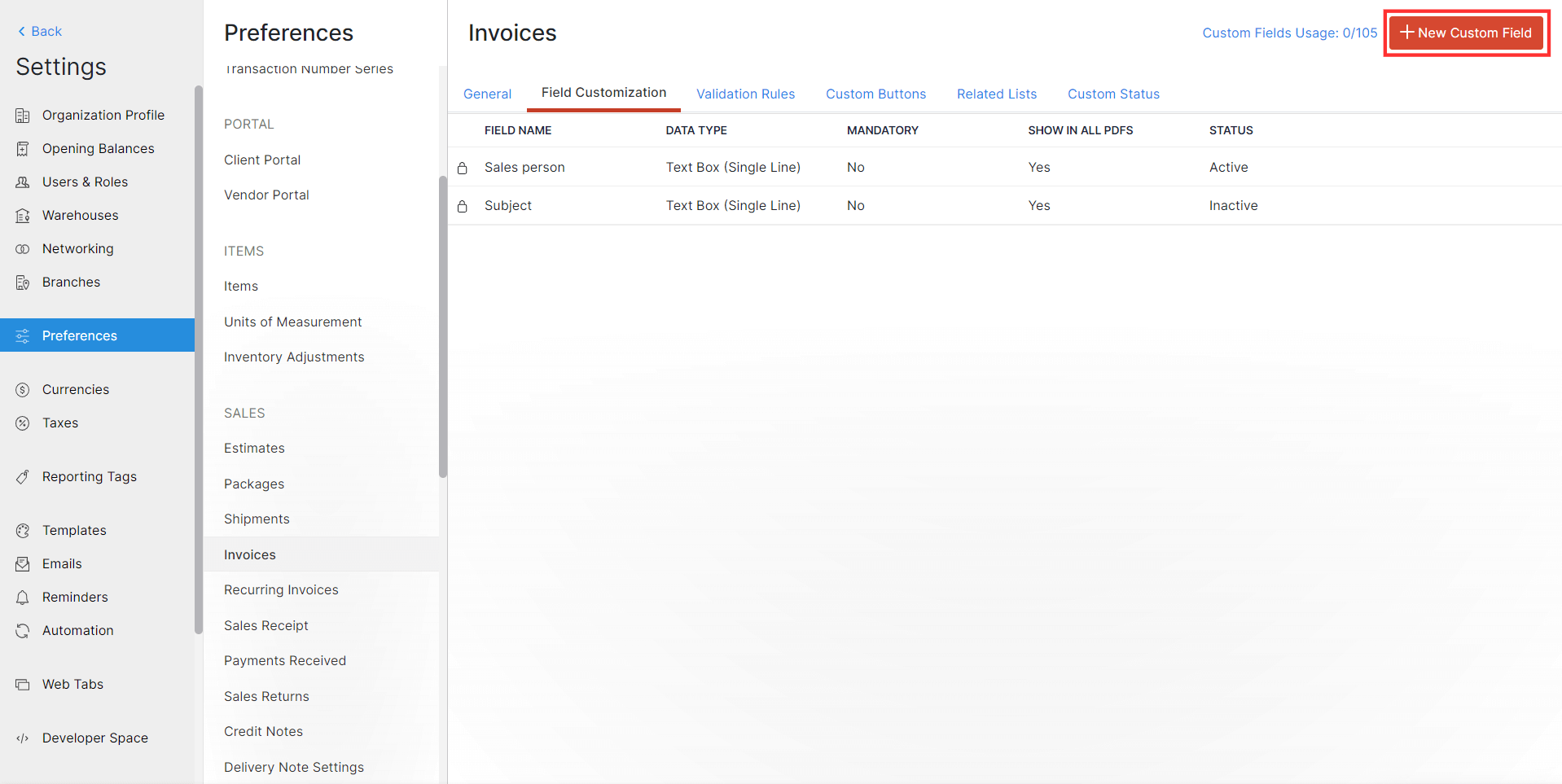
- Enter the Label Name and select Formula from the dropdown next to Data Type.
- Select the data type in which you want to store and display the output of the formula from the dropdown next to Output Data Type.
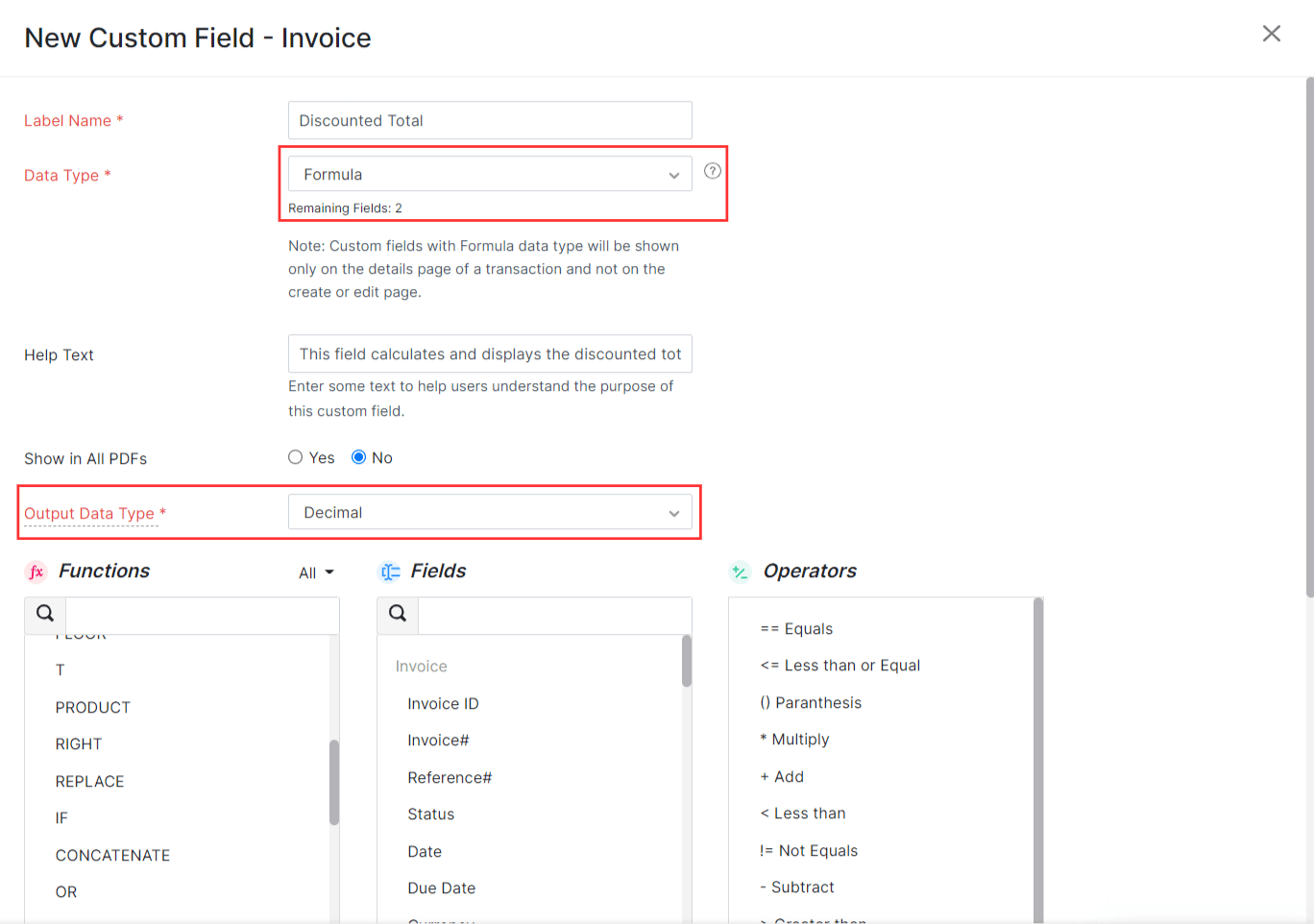
- Construct the formula by clicking the + button next to the respective Functions, Fields, and Operators or by double-clicking them. You can also enter the formula in the Formula field.

- After constructing the formula, click Check Syntax next to the Formula field to check if the formula that you have entered is valid.
- Click Save.
Note: Custom fields created using the formula data type will be displayed only on the module’s details page and not on the module’s creation or edit page.
 Yes
No
Yes
No
Thank you for your feedback!